
Completing a Worksheet (Timesheet)
Overview
After clocking out, you'll be prompted to complete a Worksheet.
The Worksheet records the hours worked, break times and how your time was spent across the different parts of the Job. This information is used for job costing, productivity reporting and, where applicable, client invoicing.
A Worksheet must be completed before you can clock back into the same Job.
Recording Your Shift
When you open the Worksheet, your start and finish times will already be populated using the times you clocked in and out.
If required, you can adjust:
- Start date and time.
- Finish date and time.
- Pay Rate.
- Break duration.
- Allowances or comments.
The app automatically calculates your total worked hours.
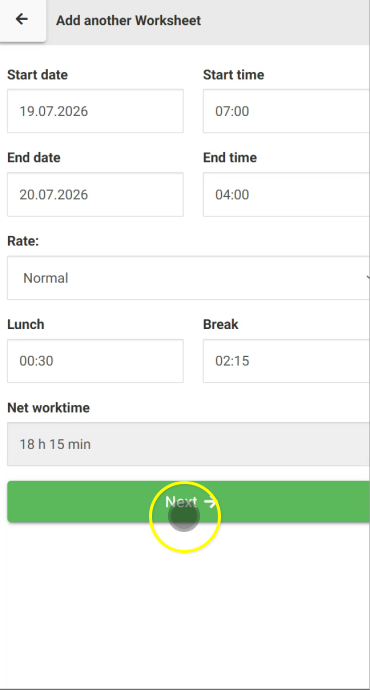
Overnight Shifts
If your shift continued past midnight:
- Untick Same Day.
- Confirm the correct finish date.
- Enter the finish time.
The Worksheet will automatically calculate the correct duration.
Entering Times
The Worksheet uses a 24-hour clock.
Simply type the numbers without the colon.
For example:
730becomes 07:301700becomes 17:0030becomes a 30 minute break.215becomes a 2 hour 15 minute break.
The app formats the values automatically.
Allocating Your Time
Towards the bottom of the Worksheet you'll see the Job Scope.
Each line item contains a field where you allocate the hours worked against that activity.
The total allocated time should equal your total worked hours.
For example, if you worked an eight-hour shift, you should allocate eight hours across the relevant line items.
Understanding the Time Fields
Each line item contains two separate fields.
Timesheet (Actual)
This records the actual labour performed.
When entering time, simply type the hours and minutes.
For example:
815becomes 8.25 hours1815becomes 18.25 hours
The app automatically converts hours and minutes into decimal hours for reporting and costing.
Billable Quantity (DLS)
This field is used later when completing the Daily Labour Summary and/or recording billable quantities for invoicing if you worked on a Do & Charge item and/or job progress tracking on Lump Sum items
In most cases, technicians only need to complete the Timesheet (Actual) field when filling out their Worksheet.
Jobs Measured by Units
Some Jobs are measured using units instead of labour hours.
For example:
- Linear metres
- Square metres
- Number of items installed
If the line item uses a different unit, simply replace the automatically calculated value with the quantity completed.
The unit of measure is displayed beside each field.
Saving Your Worksheet
Once all labour has been allocated:
- Review your entries.
- Ensure your allocated time matches your total worked time.
- Click Save.
You'll then be asked whether you would like to complete the Daily Labour Summary (DLS) now or later.
Best Practice
- Complete your Worksheet immediately after clocking out.
- Allocate all worked hours across the appropriate Job Scope items.
- Check that your total allocated time matches your worked hours before saving.
- If your Job uses quantities instead of labour hours, record the completed quantity instead of the calculated hours.
Related Articles
- Clocking In and Out
- Completing a Daily Labour Summary (DLS)
- Understanding Job Scope
- Using Field Notes