
Clocking In and Out
Overview
Clocking in and out records when your team arrives on site and finishes work.
This information is used to create Worksheets and Timesheets, helping your office accurately track labour, monitor job progress and prepare invoices.
Clocking in and out is completed directly from the scheduled Job in the JGID Business Mobile App.
Before You Clock In
Before clocking in, ensure:
- You have an internet connection.
- Your device's GPS (Location Services) is enabled.
- You have opened the correct scheduled Job.
GPS is only used when clocking in and clocking out to record your location at those times. Your location is not continuously tracked throughout your shift.
Clocking In
To clock in:
-
Open your scheduled Job.
Select Clock In.
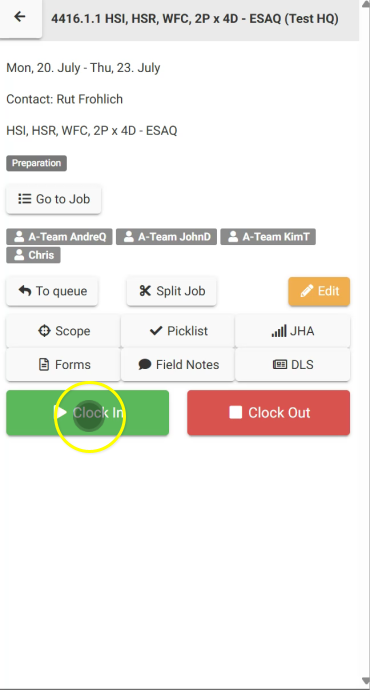
- Choose either:
- All Workers, or
- Individual workers.
- Confirm the clock in.
Once clocked in:
- The selected workers will be shown in green, indicating they are currently on site.
- Office staff can immediately see who has arrived on site.
Important:
When the first technician clocks in, the Job Status will automatically change from Preparation or Pending to Current.
This helps everyone in the business know that work has officially begun.
Clocking Out
At the end of the shift:
- Open the Job.
- Select Clock Out.
- Choose all workers or individual workers.
- Confirm the clock out.
Once clocked out:
- Workers are displayed in orange.
- This indicates they have finished work but have not yet completed their Worksheet.
Completing Your Worksheet
After clocking out, you'll be prompted to complete your Worksheet.
If you choose to complete it later, you cannot clock back into the same Job until the outstanding Worksheet has been completed.
You can still clock into other Jobs if required.
Clock Times
By default:
- Your start time is the time you clocked in.
- Your finish time is the time you clocked out.
These times can be adjusted later if required when completing your Worksheet.
The JGID Business Mobile App uses a 24-hour clock.
When entering times manually, simply type the numbers.
For example:
730becomes 07:301300becomes 13:002100becomes 21:00
The app automatically formats the time for you.
Overnight Shifts
If your shift finishes after midnight:
- Untick Same Day.
- Confirm the correct finish date.
- Enter your finish time.
This allows overnight work to be recorded correctly.
Best Practice
- Enable GPS before clocking in or out.
- Clock in when work actually begins and clock out when work finishes.
- Complete your Worksheet immediately after clocking out whenever possible.
- Check that the correct workers have been clocked in or out before confirming.
Related Articles
- Viewing Scheduled Jobs
- Completing a Worksheet
- Completing a Daily Labour Summary (DLS)
- Understanding Job Statuses
- Using Field Notes