
Viewing Scheduled Jobs
Overview
The Calendar is the main workspace within the JGID Business Mobile App.
It allows you to view your scheduled Jobs, access important project information and perform your day-to-day field activities from a single location.
The information available depends on your user level, however every technician can view the Jobs they have been assigned to.
Choosing a Calendar View
Managers, Supervisors and Administrators can choose how they would like to view the Calendar.
For managing teams, we recommend using the Week Scheduler, as it provides a good balance between detailed scheduling and an overall view of the week's workload.
Technicians will generally find the Day View or Week View the most useful for viewing their own scheduled Jobs.
Opening a Job
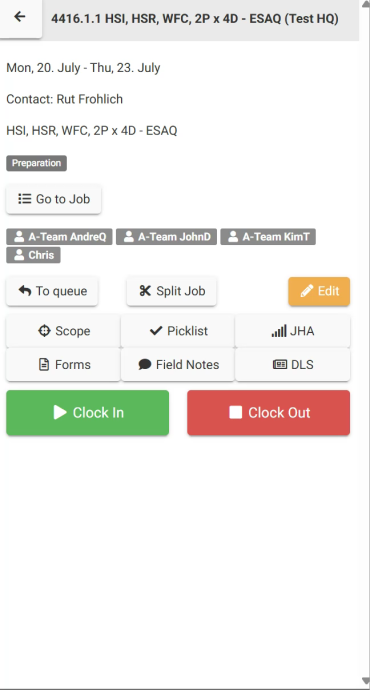
Tap on a scheduled Job to view its details.
Depending on your permissions, you may see:
- Scheduled start and finish dates and times.
- Customer details, including a clickable phone number.
- Job title.
- Job status.
- Workers assigned to the Job.
- Additional actions and project information.
Even if you only have Employee access, you can still see which other workers have been assigned to the same Job, making it easy to know who you'll be working with.
Available Actions
From a Job, you may be able to access:
- Job Scope – View the approved scope of works.
- Field Notes – Read important site information and add notes or photos.
- Pick List – View required materials, instruments, consumables and PPE.
- Job Hazard Analysis (JHA) – Review and complete the project's safety documentation.
- Clock In / Clock Out – Record attendance on site.
- Worksheet – Record labour and completed work.
- Daily Labour Summary (DLS) – Capture customer sign-off and billable quantities.
The actions available depend on your user permissions.
Manager and Supervisor Features
Managers, Supervisors and Administrators have additional options available when viewing a Job.
These may include:
- Opening the full Job record.
- Moving scheduled Jobs.
- Assigning or removing workers.
- Returning a Job to the Job Queue.
Supervisors have the same scheduling capabilities as Managers, however financial information is not displayed within the mobile app.
Best Practice
- Review the Job details before travelling to site.
- Check who else has been assigned to the Job.
- Read the Field Notes and Job Scope before starting work.
- Confirm any required materials, equipment or safety documentation before clocking in.
Related Articles
- Understanding the JGID Business Mobile App
- Navigating the JGID Business Mobile App
- Understanding Job Scope
- Using Field Notes
- Clocking In and Out
- Completing a Job Hazard Analysis (JHA)