
Navigating the JGID Business Mobile App
Overview
When you sign in to the JGID Business Mobile App, the Home screen gives you quick access to the features you'll use most often.
The options available depend on your user permissions and whether your organisation uses equipment scanning.
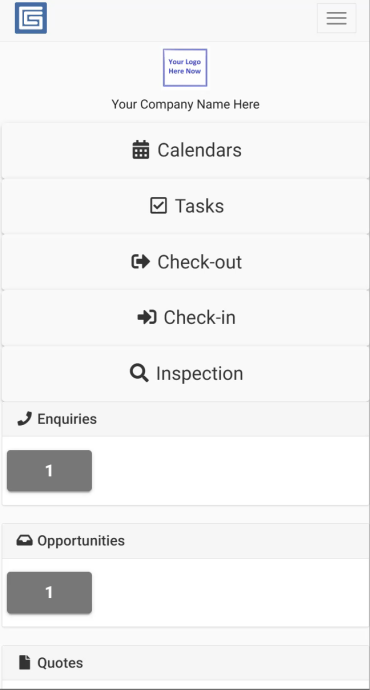
Home Screen
Every user will see two main buttons:
- Calendar – View your scheduled Jobs and calendar.
- Tasks – View and manage your assigned tasks.
If your organisation has equipment scanning enabled, you'll also see:
- Check Out – Issue equipment to a user, vehicle or location.
- Check In – Return equipment.
- Inspect – Record inspections using RFID, QR codes, barcodes or NFC tags.
These scanning features are optional and may be hidden if your organisation does not use them.
Calendar
The Calendar is the main area of the mobile app and is where most technicians begin their day.
From here you can:
- View your scheduled Jobs.
- Open Job details.
- Access the Job Scope.
- View or record Field Notes.
- Complete Job Hazard Analyses (JHAs).
- Clock in and out.
- Complete Worksheets.
- Complete Daily Labour Summaries (DLS).
Managers and Supervisors can also view and manage team schedules directly from the Calendar.
Tasks
The Tasks screen displays tasks that have been assigned to you.
This allows you to keep track of work that needs to be completed alongside your scheduled Jobs.
Manager Dashboard
Managers, Administrators and Supervisors have access to additional information within the mobile app.
Depending on your permissions, you may also see:
- Enquiries
- Opportunities
- Quotes
- Jobs
- Invoices
- Task reminders
- Equipment inspection reminders
- Staff qualification and training reminders
This provides a mobile version of the key information available from the desktop dashboard.
User Permissions
The features available within the app depend on your user level.
Employees primarily access their own Jobs and complete field activities.
Supervisors can also manage schedules and teams but do not have access to financial information.
Managers and Administrators have the highest level of access, including scheduling and business management features.
Best Practice
- Use the Calendar as your starting point each day.
- Check your assigned Jobs before travelling to site.
- If equipment scanning is enabled, always use the Check In and Check Out functions to keep equipment records accurate.
- Supervisors should regularly review the schedule to keep teams coordinated.
Related Articles
- Understanding the JGID Business Mobile App
- Viewing Scheduled Jobs
- Clocking In and Out
- Using Field Notes
- Completing a Worksheet