
Different Ways to View Your Schedule
Overview
JGID provides several different ways to view your schedule, depending on what you're trying to do.
Some views are designed for simply reviewing your calendar, while others are designed for planning Jobs, allocating technicians and managing your workload.
Understanding the different scheduling views will help you choose the most efficient way to work.
Calendar Modes
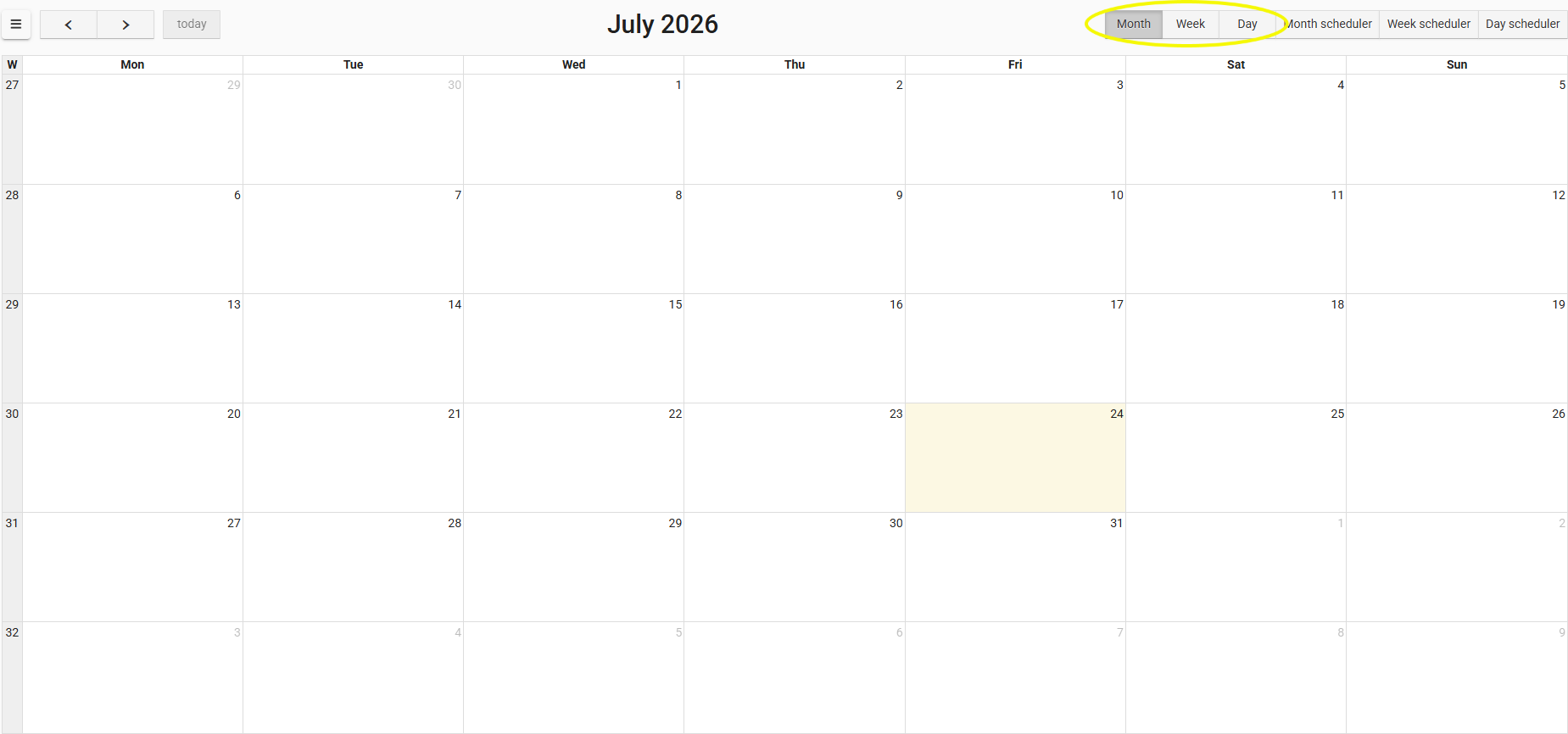
The Calendar Modes provide a familiar calendar experience, similar to Google Calendar or Microsoft Outlook.
There are three Calendar Modes:
- Month
- Week
- Day
These modes are designed for viewing your schedule rather than actively planning work.
Use the Calendar Modes when you want to:
- Review upcoming Jobs and events.
- Check what's happening today, this week or this month.
- Navigate through your schedule.
- Get an overview of your workload.
The Calendar Modes do not include the advanced scheduling tools found in the Scheduler Modes.
Scheduler Modes
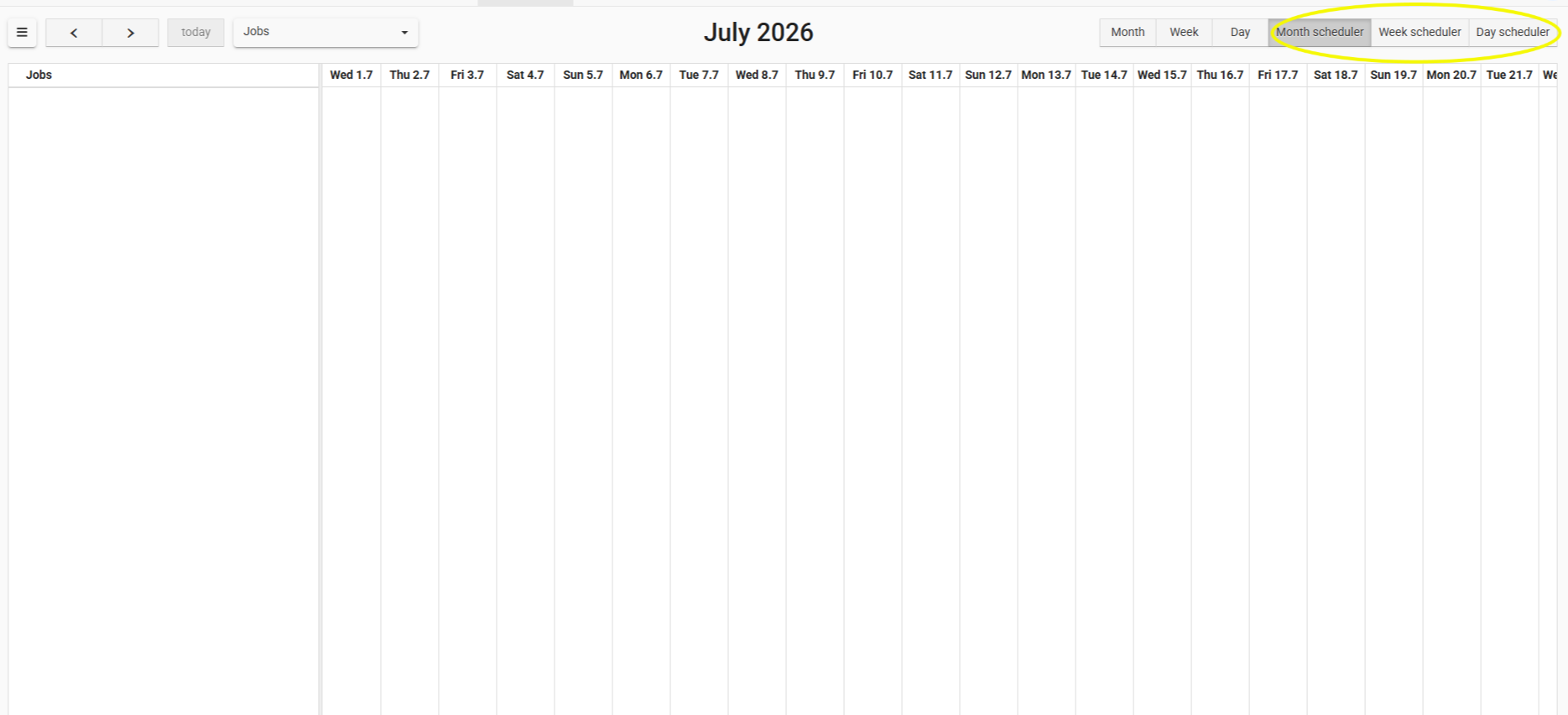
The Scheduler Modes are designed for planning and managing work.
There are three Scheduler Modes:
- Month Scheduler
- Week Scheduler
- Day Scheduler
These modes allow you to:
- Schedule Jobs from the Job Queue.
- Allocate technicians.
- Resize scheduled Jobs.
- Split Jobs across multiple dates.
- Plan future workload.
Unlike the Calendar Modes, each Scheduler Mode can also be displayed in two different ways.
Jobs View
Jobs View displays each Job first, with the technicians assigned to that Job shown beneath it.
This view is ideal for:
- Planning future workload.
- Building work crews.
- Seeing who is working together.
- Managing multiple Jobs at the same time.
Calendar View
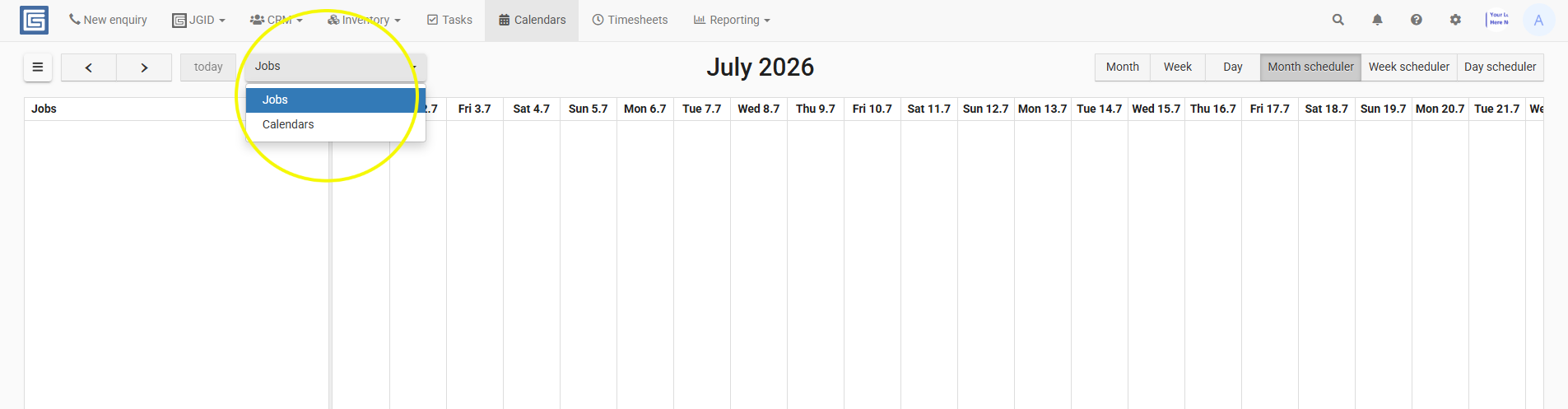
Calendar View displays each technician first, with their allocated Jobs shown beneath them.
This view is ideal for:
- Checking staff availability.
- Reviewing individual workloads.
- Identifying double bookings.
- Finding technicians with available capacity.
Both views display exactly the same schedule. They simply organise the information differently.
Note: Jobs View and Calendar View are only available within the Month Scheduler, Week Scheduler and Day Scheduler. They are not available in the standard Month, Week or Day Calendar Modes.
Choosing the Right View
As a general guide:
| View | Best Used For |
|---|---|
| Month | Viewing your monthly schedule |
| Week | Reviewing your weekly schedule |
| Day | Viewing today's schedule |
| Month Scheduler | Long-term planning and forecasting |
| Week Scheduler | Planning and coordinating work for the week |
| Day Scheduler | Managing multiple shorter Jobs throughout the day |
Most schedulers switch between different Calendar Modes and Scheduler Modes throughout the day, depending on what they're trying to achieve.
Best Practice
- Use the Calendar Modes when you simply want to review your schedule.
- Use the Scheduler Modes when planning Jobs and allocating technicians.
- Switch between Jobs View and Calendar View depending on whether you're planning around the Job or checking technician availability.
- Choose the view that provides the right level of detail for the work you're managing.
Related Articles
- Understanding Scheduling
- Using the Job Queue
- Scheduling a Job
- Splitting a Job
- Managing Calendars